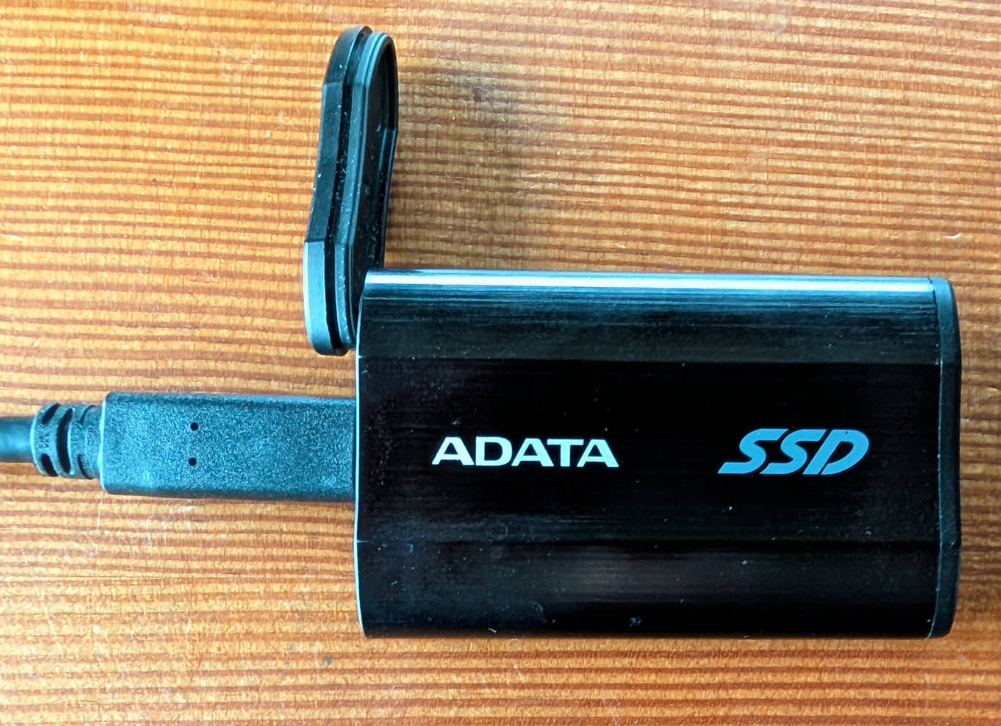
A family member recently wanted to discard an old 1TB ADATA external SSD. They knew I’d be paranoid and figure out the right way to wipe it securely before recycling. Saving some notes for future reference and in case it might be helpful to anyone else.
This was all done on a Debian 13 (Trixie) host machine with rather a stock install of tools. Your distro
might have slightly different tools but they should be very similar.
Find the Drive and Unmount
Grab some data from the beginning of the disk so we can compare later to ensure it’s gone.
$ sudo hexdump -n 1024 /dev/sda
0000000 c033 d08e 00bc 8e7c 8ec0 bed8 7c00 00bf
0000010 b906 0200 f3fc 50a4 1c68 cb06 b9fb 0004
...
First find the device name - in this case it is the sda disk and sda1 partition. We will
unmount the partition before making changes just to be safe.
$ lsblk
NAME                        MAJ:MIN RM   SIZE RO TYPE  MOUNTPOINTS
sda                           8:0    0 953.9G  0 disk
└─sda1                        8:1    0 953.9G  0 part  /run/media/****/ADATA *****
nvme0n1                     259:0    0 238.5G  0 disk
├─nvme0n1p1                 259:1    0   976M  0 part  /boot/efi
├─nvme0n1p2                 259:2    0   977M  0 part  /boot
└─nvme0n1p3                 259:3    0 236.6G  0 part
  └─nvme0n1p3_crypt         254:0    0 236.6G  0 crypt
    ├─fuzz--*************   254:1    0 228.8G  0 lvm   /
    └─fuzz--*************** 254:2    0   7.7G  0 lvm   [SWAP]
$ sudo umount /dev/sda1
Wipe the Drive
Because this is an external SSD connected via USB-C we can’t assume standard SSD commands like TRIM will work.
The most reasonable mechanism to do a simple “wipe” of the drive is write a single pass of random data. (A more secure
approach would be multiple passes at the expense of more wear on the drive.)
WARNING: The rest of these examples use my device
sda- be sure to update to your device if you are copying and pasting any of these commands.
$ sudo shred -v -n 1 /dev/sda
shred: /dev/sda: pass 1/1 (random)...
shred: /dev/sda: pass 1/1 (random)...1.2GiB/954GiB 0%
shred: /dev/sda: pass 1/1 (random)...2.6GiB/954GiB 0%
...
shred: /dev/sda: pass 1/1 (random)...953GiB/954GiB 99%
shred: /dev/sda: pass 1/1 (random)...954GiB/954GiB 100%
We can then confirm changes by running hexdump again and comparing to ensure the data is different.
$ sudo hexdump -n 1024 /dev/sda
0000000 aa0e 7d7e 7723 1bfb c617 ebbc 2eff c349
0000010 9b28 91c2 b997 bc32 a331 c6dc 31a6 5a85
...
You can also inspect the character data to see if anything looks like it was missed.
$ sudo hexdump -n 1024 -C /dev/sda
00000000  0e aa 7e 7d 23 77 fb 1b  17 c6 bc eb ff 2e 49 c3  |..~}#w........I.|
00000010  28 9b c2 91 97 b9 32 bc  31 a3 dc c6 a6 31 85 5a  |(.....2.1....1.Z|
...
And lastly wipe any remaining file system and confirm it is empty with fdisk -l.
$ sudo wipefs -a /dev/sda
$ sudo fdisk -l /dev/sda
Disk /dev/sda: 953.87 GiB, 1024209543168 bytes, 2000409264 sectors
Disk model: SE800
Units: sectors of 1 * 512 = 512 bytes
Sector size (logical/physical): 512 bytes / 512 bytes
I/O size (minimum/optimal): 512 bytes / 512 bytes
Now I can safely send the device off for e-cycling.